

If you’ve been staring at your WooCommerce store wishing you could give just one product a VIP makeover without breaking the rest of your site, you’re in luck.
If you are using a WordPress block theme, you can play favorites using the Site Editor, and you don’t even need to touch a line of code.
Here is how to give your chosen products the spotlight they deserve.
Step 1: Enter the Site Editor
First, let’s head into the engine room.
- Go to your WordPress Dashboard.
- Hover over Appearance.
- Click on Editor.
Step 2: Create a New Single Product Template
- Click on Templates in the sidebar.
- Click on Add Template in the top right corner to add a new template.
- Select Single Item: Product.
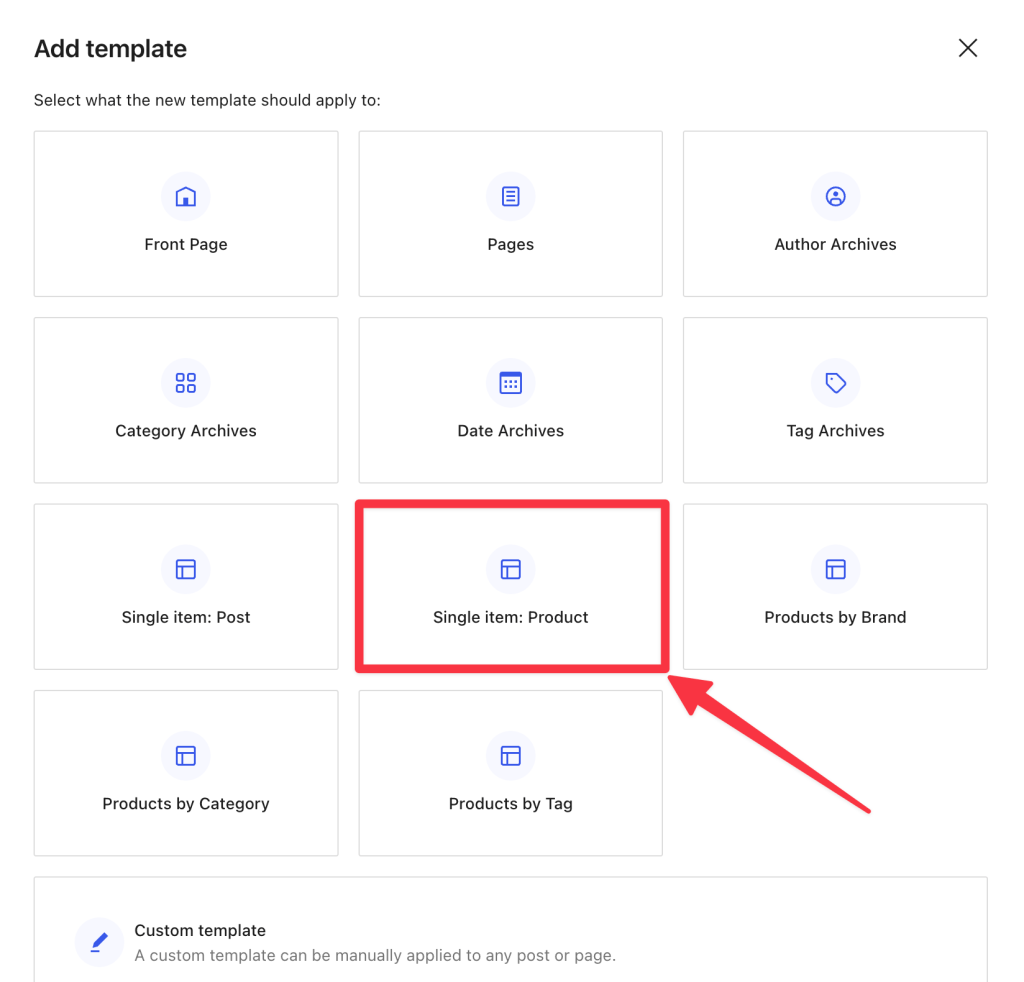
Step 3: Pick Your “Favorite”
WordPress will now ask you a very important question: Who is this template for?
Just select the product that requires the specific view.

In my case, I’ll choose my product called “Product with New Layout”.
Step 4: Design Your Masterpiece
Now the fun begins. You are now inside the editor, but specifically for this one product’s layout.
You can add any blocks you want here. A countdown timer? A video review? A gallery of user-generated photos? Go wild. This layout will only apply to the specific product you chose.
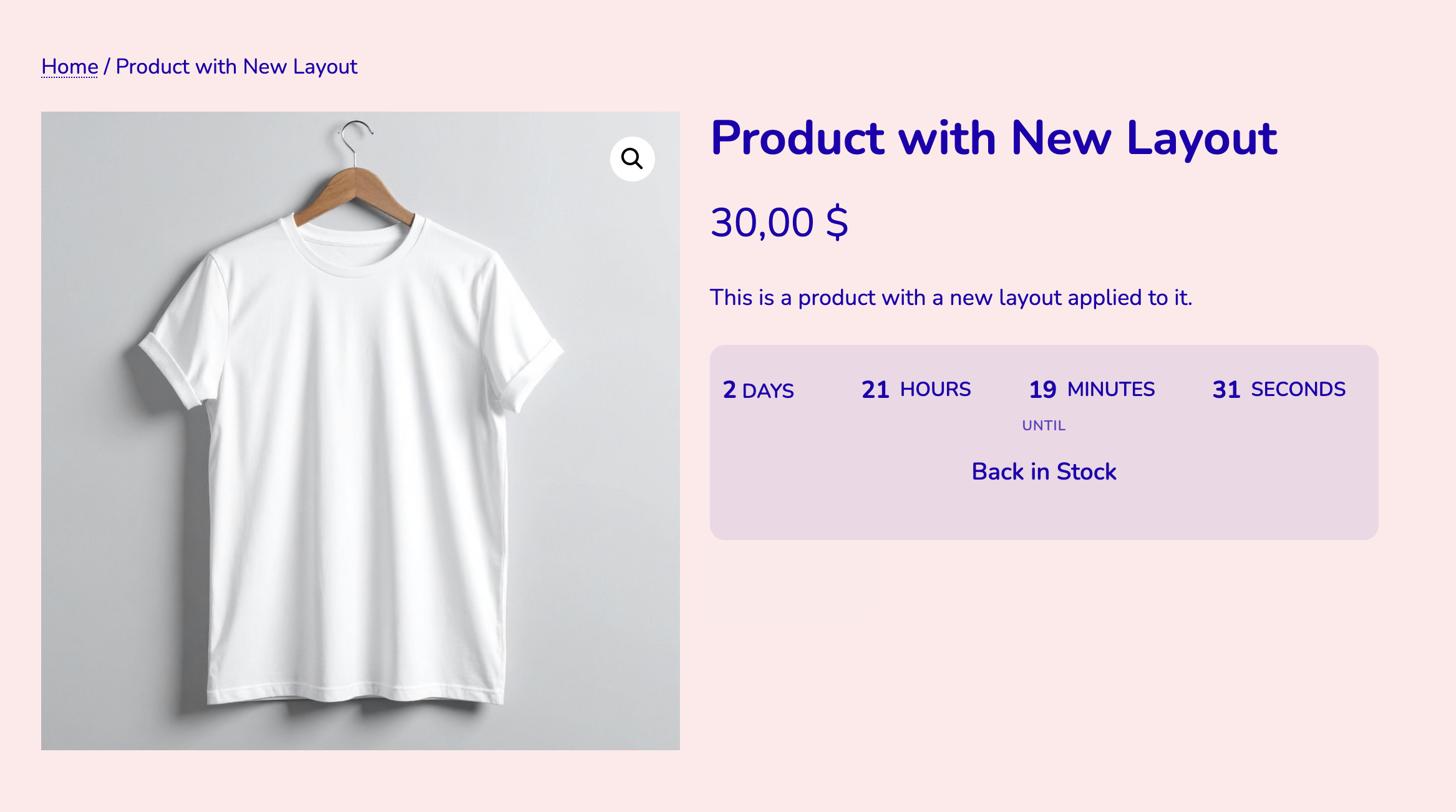
In this case – my product is out of stock and I want to set a countdown till it’s back in stock. Fun!
I’ll use the “Event Countdown” block.

Step 5: Save and Celebrate
Once you are happy with your new design:
- Hit Save in the top right corner.
- Go to the front end of your website and navigate to your specific product.
- Marvel at your custom layout.
Now, go check your other products. You’ll see they are safe and sound in their standard default layout.
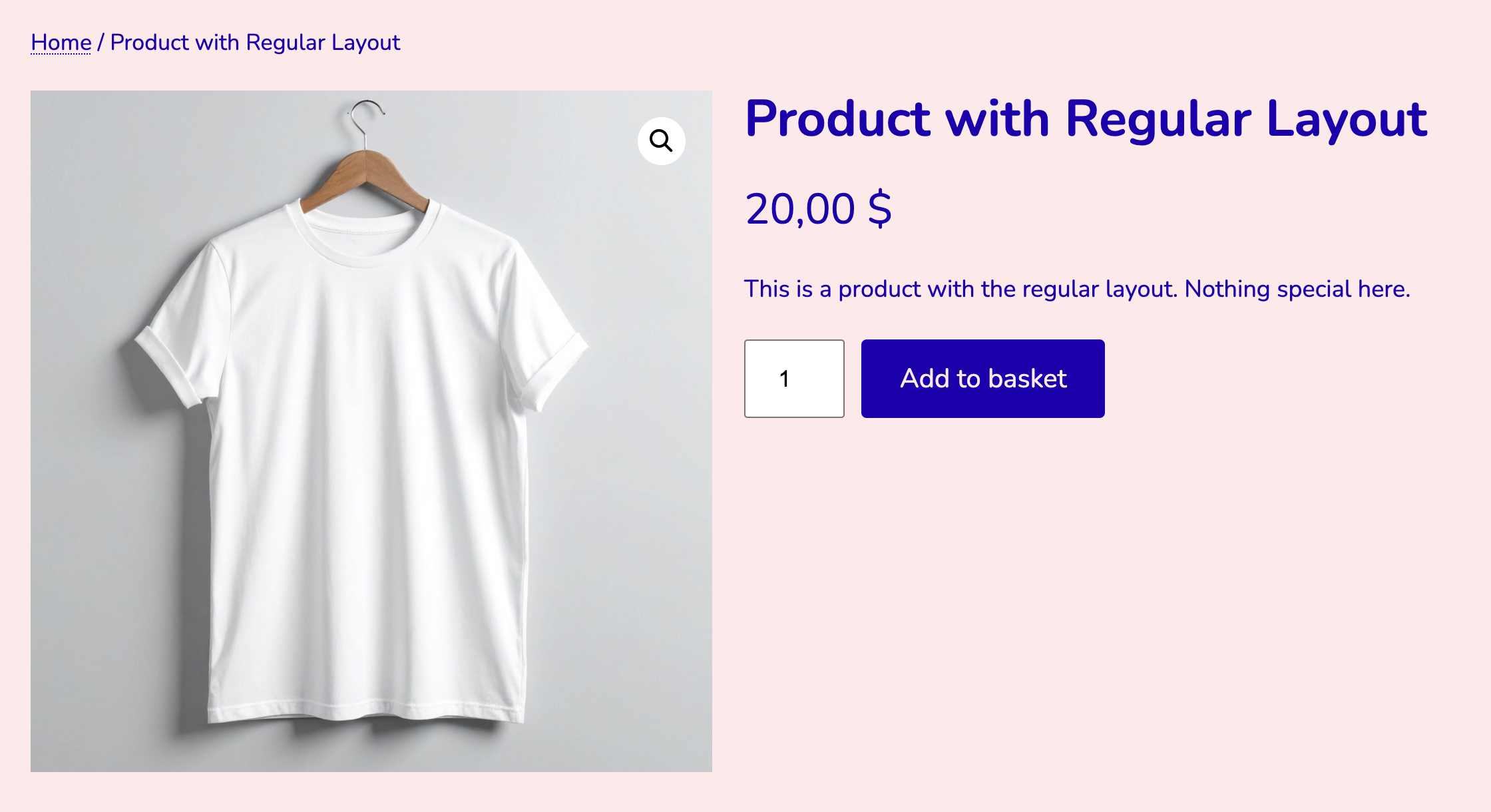
Just to prove it works, here is a look at a standard product layout compared to my new custom layout, where I added a countdown block to create some urgency.
Beyond Single Products
But don’t think this superpower is limited to just one lonely product. You can pull this exact same trick for entire Product Categories (hello, custom “Summer Sale” layout!), individual Blog Posts, or even specific Tags.
The Site Editor has officially handed you the keys to the castle. The mixing and matching is practically endless, so go ahead- break the mold, ditch the defaults, and build something that looks exactly the way you want it to.
Leave a Reply